

How To Do A Clean Install Of Mac Os Sierra
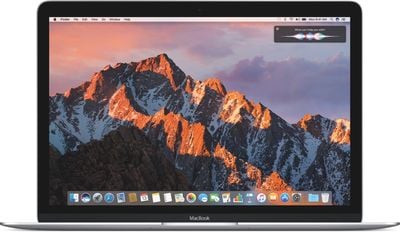
macOS Sierra is Apple's latest desktop operating system, which succeeds OS X El Capitan and adopts a new name to bring it in line with iOS, watchOS, and tvOS. The OS will come pre-installed on all new Macs once current stock is depleted and is a free download for existing Mac owners.
The main new feature in macOS Sierra is deep Siri integration, bringing Apple's personal assistant to the Mac for the first time. It also adds new features to Photos and Messages, and includes Continuity smarts like Universal Clipboard and an Auto Unlock option for Apple Watch owners.
This tutorial explains how to download macOS Sierra and perform a clean install, which offers several benefits over the automatic upgrade process included in the installation package.
Benefits of a Clean Install
A clean install can remove annoying quirks and strange behaviors that your Mac may have inherited over time due to driver upgrades, wonky apps, and messy installation procedures. Performing a fresh install can also reclaim lost disk space caused by junk files left by third-party apps, and can generally make your Mac feel a lot snappier, enabling you to relive that feeling of booting it up for the first time.
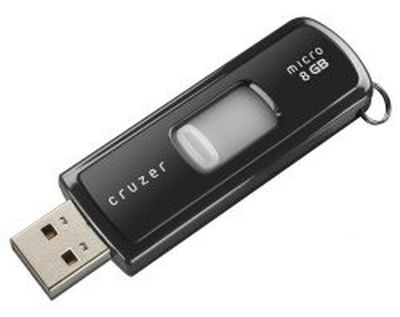 To complete the clean install procedure described below, you'll need an 8GB or larger USB thumb drive and an hour or two to spare.
You should also perform a full backup of your Mac beforehand using Time Machine. That way you can restore your system from the Recovery partition if something goes wrong. Alternatively, save a bootable mirror image of your system to an external drive using a clone utility like SuperDuper! ($27.95) or Carbon Copy Cloner ($39.99).
Compatibility Check
Before you do anything, check that your Mac is compatible with Apple's new operating system. macOS Sierra supports the following:
- iMac (Late 2009 or newer)
- MacBook Air (2010 or newer)
- MacBook (Late 2009 or newer)
- Mac mini (2010 or newer)
- MacBook Pro (2010 or newer)
- Mac Pro (2010 or newer)
Another way of checking if your Mac is compatible is to open the Apple menu in the upper left corner of your Mac's screen and selecting About This Mac. Look just below the OS X version number in the Overview tab – if the Mac model name is the same or a later model year than the one shown in the compatibility list above, your Mac is compatible with Sierra.
Pre-Install Notes
If you want total control of what data gets transferred to the new OS, you can sidestep the Migration Assistant and manually copy any important files and folders on your existing system to an external drive instead. It's also worth taking a screenshot of your desktop, to serve as a record of how you like things set up.
Some users may find it useful to make a note of the contents of their Applications folder for later reference. A screenshot may suffice (Command-Shift-4, then Space to capture the Finder window), but if not, the following steps describe a simple way to create a list of apps.
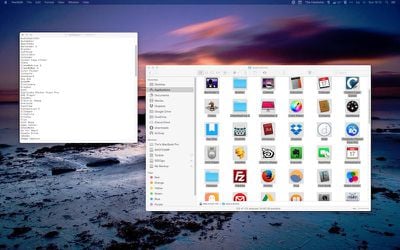
- Open the Applications folder and press Command+A to select all apps in the Finder window, then press Command+C.
- Now open up TextEdit, create a new document, select Format -> Make Plain Text from the menu bar, and press Command+V to paste a list of app names into the document.
- If necessary, add details of download locations for any non-Mac App Store apps you use, append any serial numbers you might need, and save the text document to an external drive.
Be sure to allow any cloud services you use to complete synchronization before continuing. It's also worth screen-grabbing or noting down any custom preferences, settings, Wi-Fi passwords, and app-specific profiles you use.
Lastly, de-authorize any services on your Mac, including your iTunes account (iTunes menu > Store > Deauthorize this Computer), since these are usually limited to a set number of systems.
Create a Bootable Installer
Download the macOS Sierra installation package from the Mac App Store. Once it has downloaded, follow these steps to create a USB bootable installer.
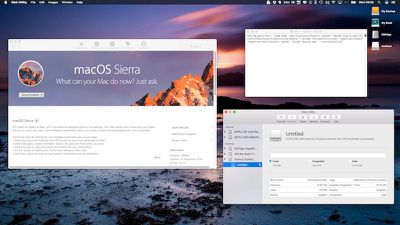
- Open Disk Utility (found in the Applications/Utilities folder), select the thumb drive in the sidebar and click the "Erase" button.
- Name the USB drive "Untitled" if it isn't already, choose the Format "OS X Extended (Journaled)", and click "Erase". Once your thumb drive is formatted and the macOS installation package has finished downloading, open up Terminal (found in Applications/Utilities).
- Now, ensure the USB drive is the only disk named "Untitled" connected to your Mac, and then paste the following command into the Terminal window, and press Enter: sudo /Applications/Install\ macOS\ Sierra.app/Contents/Resources/createinstallmedia --volume /Volumes/Untitled --applicationpath /Applications/Install\ macOS\ Sierra.app --nointeraction
- You should be prompted for your administrator password. Enter it, and the command will create a bootable Sierra installer on the USB drive. The process will take a few minutes to complete, so leave it running.
Restart and Install
Once the USB installer has been created, restart your Mac and hold down the Option key as soon as you hear the reboot tone. Then follow these steps:
- Use the mouse pointer or the arrow keys on your keyboard to select the disk called "Install macOS Sierra" in the drive list that appears on the screen.
- Once the USB drive has booted, select "Disk Utility" from the Utilities window, choose your Mac's startup drive from the list, and click "Erase".
- When your Mac's startup disk is formatted, return to the Utilities window and select "Install macOS", choose your freshly erased startup drive when asked where to install the OS, and follow the onscreen prompts to complete the installation.
Post-Install Steps
Once the clean installation of macOS Sierra is up and running on your Mac, you can either restore your data from a Time Machine backup using Migration Assistant (found in Applications/Utilities), or begin restoring your apps, files, and settings manually to get your Mac set up just the way you like it.
Popular Stories
Apple Introduces New MacBook Upgrade Program for Business Partners
Monday November 29, 2021 7:38 am PST by Sami Fathi
In association with CIT as the financing partner, Apple has launched a new Mac Upgrade Program for small businesses and Apple business partners that allow companies to easily distribute and upgrade their fleets of MacBooks at an affordable price to all of their workers. As outlined on CIT's website, shared by Max Weinbach, Apple Business Partners can distribute the 13-inch MacBook Pro,...
Best Cyber Monday Deals for AirPods, Apple Pencil, iMac, More
With Black Friday over, Cyber Monday 2021 is now in full swing and you can find many of the same sales as last week on Apple products like AirPods, Apple Pencil, and iPad Pro. In this article we're focusing on the best Cyber Monday discounts on Apple products like these and more. Note: MacRumors is an affiliate partner with some of these vendors. When you click a link and make a purchase, we...
Cyber Monday: Original Apple TV 4K Drops to $99.99 for Amazon Prime Members
We've been tracking Apple product and accessory deals for Cyber Monday 2021 today, and now Woot is offering a solid discount on the previous generation 32GB Apple TV 4K. You can get this device in new condition for just $99.99 if you're an Amazon Prime member. Note that this sale will last for one day only. Note: MacRumors is an affiliate partner with some of these vendors. When you click a...
New iPhone SE Reportedly on Track for Release in First Quarter of 2022
Tuesday November 30, 2021 8:08 am PST by Joe Rossignol
Apple plans to release a third-generation iPhone SE in the first quarter of 2022, according to Taiwanese research firm TrendForce. If this timeframe proves to be accurate, we can expect the device to be released by the end of March. As previously rumored, TrendForce said the new iPhone SE will remain a mid-range smartphone with added support for 5G:In terms of product development, Apple is...
Five Features to Look Forward to in the 2022 MacBook Air
Tuesday November 30, 2021 1:51 pm PST by Juli Clover
In 2022, Apple is going to release an updated version of the MacBook Air with some of the biggest design changes that we've seen since 2010, when Apple introduced the 11 and 13-inch size options. In the video below, we highlight five features that you need to know about the new machine. Subscribe to the MacRumors YouTube channel for more videos. No More Wedge Design - Current MacBook...
Elon Musk Urges Customers to Buy 'Tesla Cyberwhistle' Instead of Apple Polishing Cloth
Tesla CEO Elon Musk has encouraged customers to buy the "Cyberwhistle" for $50 instead of Apple's much-discussed Polishing Cloth. The product page, which Musk shared on Twitter on Tuesday evening, offers a limited edition stainless steel whistle with the same distinctive design of the Tesla Cybertruck:Inspired by Cybertruck, the limited-edition Cyberwhistle is a premium collectible made from ...
Best Cyber Monday Apple Accessory Deals Available Today
We started sharing deals on Apple products for Cyber Monday 2021 earlier today, and now we're tracking deals and bargains available from all of the best Apple accessory companies. Similar to Black Friday, you can expect Cyber Monday savings from Twelve South, Nomad, Belkin, Casetify, and many more. Note: MacRumors is an affiliate partner with some of these vendors. When you click a link and...
Best Black Friday iPhone Deals Still Available
Cellular carriers have always offered big savings on the newest iPhone models during the holidays, and Black Friday 2021 sales have now carried over into Cyber Monday as well. Right now we're tracking notable offers on the iPhone 13 and iPhone 13 Pro devices from AT&T, Verizon, and T-Mobile. For even more savings, keep an eye on older models like iPhone SE. Note: MacRumors is an affiliate...
Transparent AirPods and 29W Power Adapter Prototypes Surface in Photos
Images of transparent prototype AirPods and a 29W Apple power adapter have been shared on Twitter by Apple device collector Giulio Zompetti. The prototypes, which appear to be either first-generation or second-generation AirPods, feature clear plastic along the stem and around the outer side of the earbud, with the normal white plastic on the inner side of the earbud. Transparent casings are ...
How To Do A Clean Install Of Mac Os Sierra
Source: https://www.macrumors.com/how-to/macos-sierra-clean-install/
Posted by: webbmuther.blogspot.com
0 Response to "How To Do A Clean Install Of Mac Os Sierra"
Post a Comment